Image Size Limits Explained: KB vs Pixels, Upload Rules, and SEO Impact
Image size limits can feel confusing because different platforms and websites use different rules. One form asks for 10KB, another says 200KB, and your website needs “fast loading” for SEO. If you guess the wrong size, you either fail to upload or your page becomes slow.
This guide explains image size limits in plain English. You will learn what “KB vs MB” really means, why pixel size is different from file size, how to pick the right limit for your use case, and how to stay safe for speed and Google rankings.
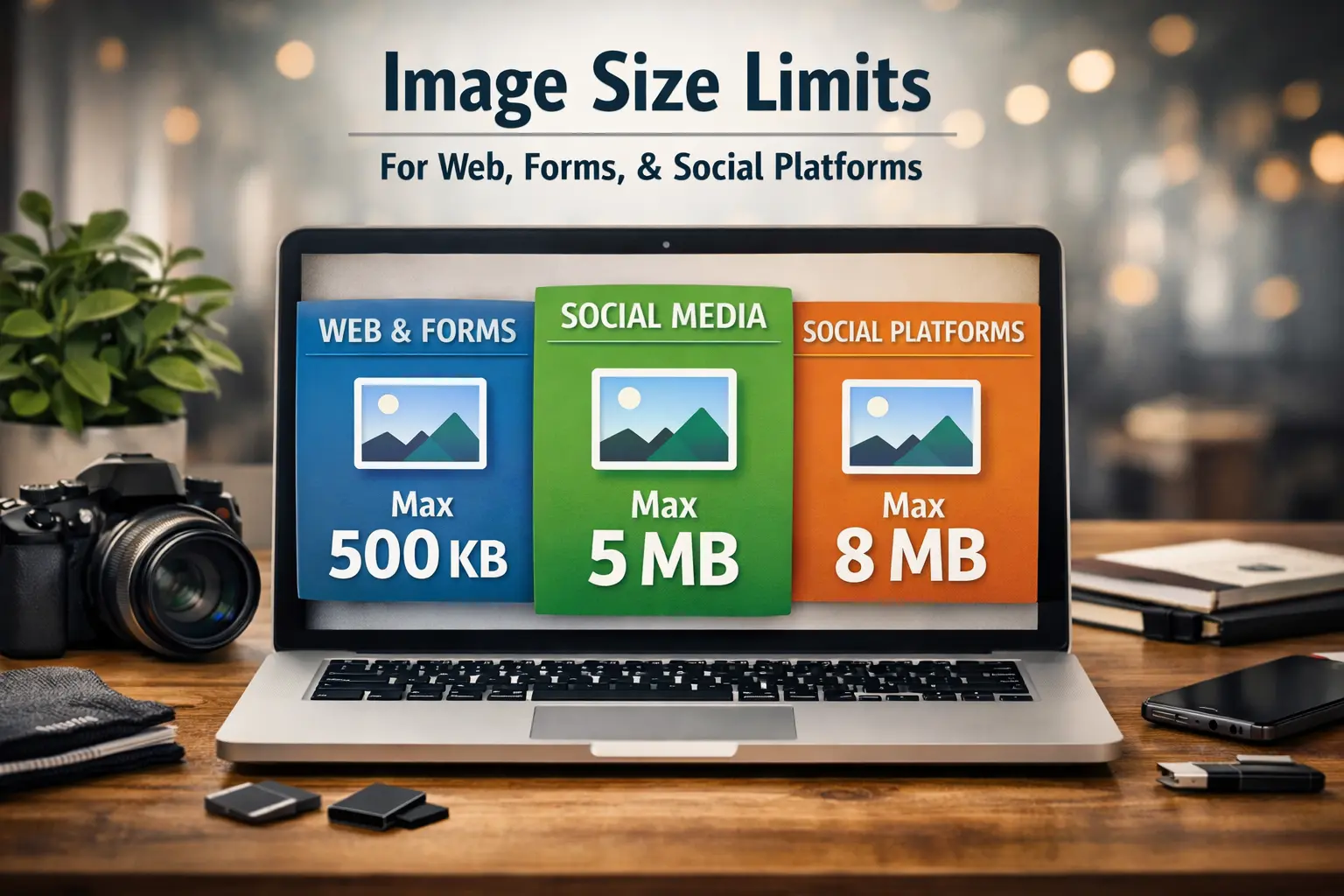
First, understand what “image size limit” actually means
When people say “image size,” they usually mean one of two things. This is where most confusion starts.
1) File size (KB, MB)
This is the “weight” of the image file. It is what websites and upload forms usually limit. Example: 10KB, 200KB, 2MB.
2) Dimensions (pixels)
This is the width and height of the image. Example: 1200 x 628, 1920 x 1080, 1080 x 1080.
KB vs MB explained in the simplest way
Most platforms mention limits in KB or MB. Here is the simple conversion you should remember.
- 1 MB is roughly 1024 KB
- 500 KB is about half of 1 MB
- 100 KB is very light for the web
- 10 KB is extremely small and usually needed for strict forms
If a website says “Max 2MB,” it means around 2048KB. If it says “Max 200KB,” it is much stricter, and you will need stronger compression.
Why different websites use different image limits
Image limits exist for real reasons. Usually, it is about speed, storage, or consistent quality.
1) Speed and performance
Websites want pages to load quickly. Heavy images slow down the page, especially on mobile.
2) Storage costs
If a platform stores millions of images, every extra KB increases cost. Limits help control that.
3) Upload stability
Large files take longer to upload and fail more often on slow internet. Smaller files are safer.
4) Standardized viewing
Some platforms want consistent dimensions so images display correctly everywhere.
What affects file size the most
If you want to hit an exact limit like 10KB or 20KB, you need to understand what makes an image heavy.
1) Image dimensions
Bigger pixel dimensions usually mean a bigger file. A 4000px camera photo is naturally heavy.
2) File format
WebP is usually smaller than JPG for the same quality. PNG can become very heavy for photos.
3) Image quality setting
Most compressors reduce file size by lowering quality in a controlled way. Good tools reduce size while keeping the image natural.
4) Image content
Photos with lots of detail, noise, or texture compress less than simple images.
Practical image size targets that work for most websites
There is no single perfect limit for every site. But these ranges work well for speed and SEO in most cases.
- Blog images: 80KB to 200KB
- Product images: 100KB to 250KB
- Hero banners: 150KB to 400KB
- Icons and small UI: under 20KB
- Thumbnails: 20KB to 80KB
If your page feels slow, the fastest win is to compress your biggest images first. Many sites have 1MB to 5MB images without noticing.

Common strict limits: 10KB, 20KB, 50KB explained
Strict limits are common in government forms, job portals, visa applications, and ID verification systems. These systems often use old infrastructure and require very small files.
When you see a 10KB limit
A 10KB limit is extremely strict. It usually works best for passport-size photos, signatures, or small documents. To reach 10KB, you often need to reduce dimensions and compress aggressively.
Use the dedicated tool page for the fastest result: Compress image to 10 kB.
When you see a 20KB limit
20KB is still strict, but easier than 10KB. It is commonly used for profile photos and form uploads. You can usually keep better quality at 20KB than at 10KB.
Use this page when the system demands an exact limit: Compress image to 20 kB.
When you see a 50KB limit
50KB is a common limit for signatures and small photos. You can often keep the image looking sharp if dimensions are reasonable.
Pixel size vs file size: the clean explanation
Pixel size is about how big the image looks. File size is about how heavy the image is. Both matter, but for different reasons.
When pixel size matters more
Pixel size matters when a platform requires a fixed resolution, like 1080 x 1080 or 1200 x 628. Social media is a common example.
When file size matters more
File size matters when a platform sets a maximum upload weight, like 200KB, 500KB, or 2MB. Forms and tool pages are common examples.
For your website SEO, both matter. Pixel size affects sharpness. File size affects speed.
What file format should you use to meet limits
Format can instantly reduce size without changing pixels. If you want smaller files with clean quality, WebP is often the best choice for websites.
- WebP: Great for web, smaller files, strong quality
- JPG: Good for photos, widely compatible
- PNG: Best for transparency, but heavy for photos
If you are uploading to a strict form, JPG is usually accepted everywhere. For blog images, WebP is often the smartest option.
How to hit an exact limit without guessing
Many people compress once, check the size, then repeat again and again. That wastes time.
A better approach is using a dedicated limit-based compressor page. It targets the size you need and saves guesswork.
Image limits for SEO: what Google cares about
Google does not care about “10KB” as a rule. Google cares about the user experience your images create.
1) Page speed
Heavy images slow down the page. Slow pages lose users. That reduces engagement and conversions.
2) Core Web Vitals
Large images can affect Largest Contentful Paint. This is especially common when a hero image is huge.
3) Mobile friendliness
Most users browse on mobile. A large image can feel fine on desktop but can be painful on mobile internet.
4) Clarity and helpfulness
Helpful visuals improve understanding and keep users engaged. That helps the page perform better overall.
Simple workflow you can repeat for every image
Step 1: Choose the correct display width
If your blog content area is around 980px, you rarely need images wider than 1200px.
Step 2: Export in a suitable format
For website images, WebP is a strong default. For strict upload portals, JPG is usually safest.
Step 3: Compress to a realistic size
For website SEO, try to keep most images under 200KB. For strict forms, use exact limit tools.
Step 4: Use a clear file name
Use names like image-size-limits-explained.webp instead of random camera names. It helps organization and can support SEO.
Step 5: Add natural alt text
Alt text should describe the image like a normal person. Keep it short and accurate.
Common mistakes people make with image limits
- Trying to upload camera images without resizing
- Using PNG for photos and getting huge file size
- Compressing too much and making images blurry
- Ignoring mobile load speed
- Forcing keywords into alt text
- Uploading huge featured images on blog posts
FAQs: Image size limits explained
1) What is the difference between KB and MB in image size?
KB and MB are file size units. 1MB is roughly 1024KB. A 200KB image is much smaller than a 2MB image.
2) Why does my 1MB image look small but still fails upload limits?
Because upload limits measure file size, not how the image looks. Even a normal-looking photo can be heavy if it was saved at high quality.
3) Is pixel size the same as file size?
No. Pixel size is width and height. File size is KB or MB. Both are connected, but they are not the same.
4) How do I compress an image to exactly 10KB?
Use a size-based tool page like Compress image to 10 kB. For 10KB, you may need smaller dimensions too.
5) How do I compress an image to exactly 20KB?
Use Compress image to 20 kB. It is easier than 10KB and usually keeps better quality.
6) What is a safe image size for blog posts?
For most blogs, 80KB to 200KB is a strong range. It loads fast and still looks clear.
7) Which format is best to reduce file size?
WebP is usually best for websites. JPG is very compatible and often accepted by forms. PNG is best for transparency but can be heavy.
8) Do smaller images help SEO?
Yes, because smaller files usually load faster. Faster pages improve user experience and can support better performance in search.
9) Why do some portals ask for very low limits like 10KB or 20KB?
Many portals use older systems, strict storage rules, or standardized upload constraints. Small limits reduce failures and keep storage low.
10) What should I do if compression makes my image blurry?
Reduce the image dimensions first, then compress again with a slightly higher quality. For strict limits, try a smaller width and keep the subject centered.
Conclusion
Image size limits are only confusing until you separate file size from pixel size. Once you understand that, everything becomes easier.
For websites, keep images light so pages load fast. For strict forms, use exact size tools to meet the limit without guessing.
If you want the fastest way to hit strict limits, use Compress image to 10 kB or Compress image to 20 kB based on your requirement.