Why Your Website Is Slow Even on Fast Hosting (Hint: It’s Your Images)
You upgraded your hosting. You enabled SSL. You even installed a cache plugin. But your website still feels slow.
If this sounds familiar, you are not alone. Most website owners blame hosting first, but the real problem is usually much simpler.
In many cases, your site is slow because your images are heavy. Not “a little heavy.” Sometimes they are bigger than your entire page code.
This guide will show you exactly why images slow down websites, what signs to check, and how to fix the issue step by step without breaking your design.
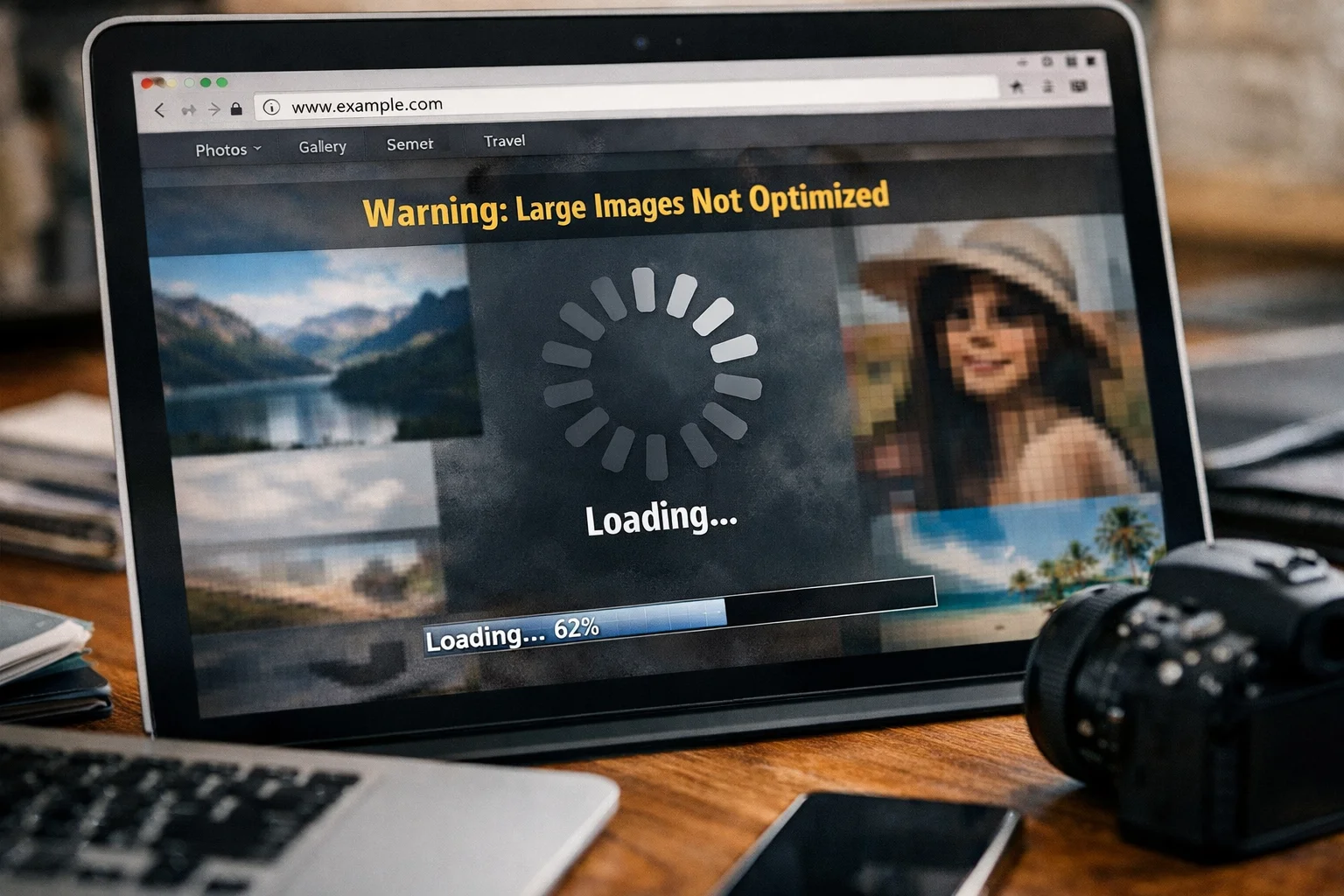
The truth: hosting is only one part of speed
Hosting decides how quickly your server responds. But page speed is not only about server response.
Your visitor still needs to download all page files. That includes HTML, CSS, JS, fonts, and images.
If your images are large, the browser downloads them first, then the page becomes usable later.
That is why a fast server can still deliver a slow experience.
Why images are the #1 reason websites feel slow
Images are usually the largest assets on a website. A single hero image can be 1 MB to 5 MB.
If your page has 10 images like that, you are forcing the user to download a full album just to read a blog post.
Even if your server is fast, the internet connection of the user may not be fast. That is where the delay happens.
Real example (very common)
Your page HTML + CSS + JS might be only 200 KB total.
But one uncompressed image might be 2 MB. That is 10x heavier than your whole page code.
So the browser spends time downloading images, not your content.
Signs that your images are slowing your website
Sometimes you cannot “see” heavy images, but your users feel the delay.
Here are the most common signs that point directly to images.
- Your homepage hero takes time to appear
- Scrolling feels laggy on mobile
- Images pop in late after text loads
- Your website is fast on WiFi but slow on mobile data
- Google PageSpeed mentions “properly size images” or “serve images in next-gen formats”
How heavy images hurt Core Web Vitals
Google measures real user experience using performance metrics. These are often called Core Web Vitals.
Images can impact them more than you think.
1) LCP (Largest Contentful Paint)
On many pages, the largest element is a hero image or featured image.
If that image is heavy, LCP becomes slow. That makes the page feel slow even if everything else is fine.
2) CLS (Cumulative Layout Shift)
If images load late without fixed dimensions, your layout shifts.
That creates a jumpy experience, especially on mobile.
3) INP (Interaction to Next Paint)
Heavy images can delay other resources. That increases time before the page becomes smooth and interactive.
Even small delays feel annoying when users try to click.
Compression vs resizing (you need both)
Many people compress images but forget resizing. That is a common mistake.
Resizing means reducing pixel dimensions. Compression means reducing file weight.
Best speed comes from using both.
- Resize first, so you are not uploading a huge image
- Compress second, so the file size becomes smaller
- Upload the optimized version to your site
Why “fast hosting” cannot fix heavy image downloads
Hosting improves server response time. But it does not magically shrink your files.
If your page has 8 MB of images, your visitor still downloads 8 MB.
That is why speed problems stay even after upgrading hosting.
What image size should you aim for (practical targets)
There is no single perfect number. But you can follow safe targets that work for most websites.
These targets keep pages fast and still look good.
- Blog images: 80 KB to 200 KB
- Product images: 100 KB to 250 KB
- Hero images: 150 KB to 400 KB
- Icons and small UI graphics: under 20 KB

Website speed killers: the most common image mistakes
Most speed problems come from a few repeated mistakes.
If you fix these, your website can feel faster within one day.
- Uploading camera photos directly (3 MB to 8 MB)
- Using PNG for large photos instead of WebP or JPG
- Uploading images at 3000px width when your site shows 900px
- Using too many images above the fold
- Not compressing images before upload
- Using heavy slider banners with multiple large images
The fastest fix: compress images to specific sizes when needed
Many users need images under a certain KB size for portals, forms, and quick uploads.
For example, job portals, visa forms, university uploads, and government websites often have strict size limits.
That is why targeted compression pages are extremely useful.
- Compress image to 10KB for strict upload limits
- Compress image to 20KB for passport size and form uploads
Step-by-step: how to fix slow images on your site
Step 1: Find the biggest images first
Open your website pages and check which images are the biggest files.
Start with your homepage hero, blog featured images, and product gallery images.
Step 2: Resize to the maximum display width
If your content column is around 900px, resize images to around 1200px max.
This is often the biggest size reduction you will get.
Step 3: Compress the resized image
After resizing, compress the image until it still looks natural.
Most images can be reduced 60 to 80 percent without visible loss.
Step 4: Use the right format
Use WebP for most website images. It usually gives smaller sizes with good quality.
Use PNG only when you need transparency or logos.
Step 5: Use lazy loading for below-the-fold images
Images that are not visible at the top can load later.
This makes the first screen load faster and improves user experience.
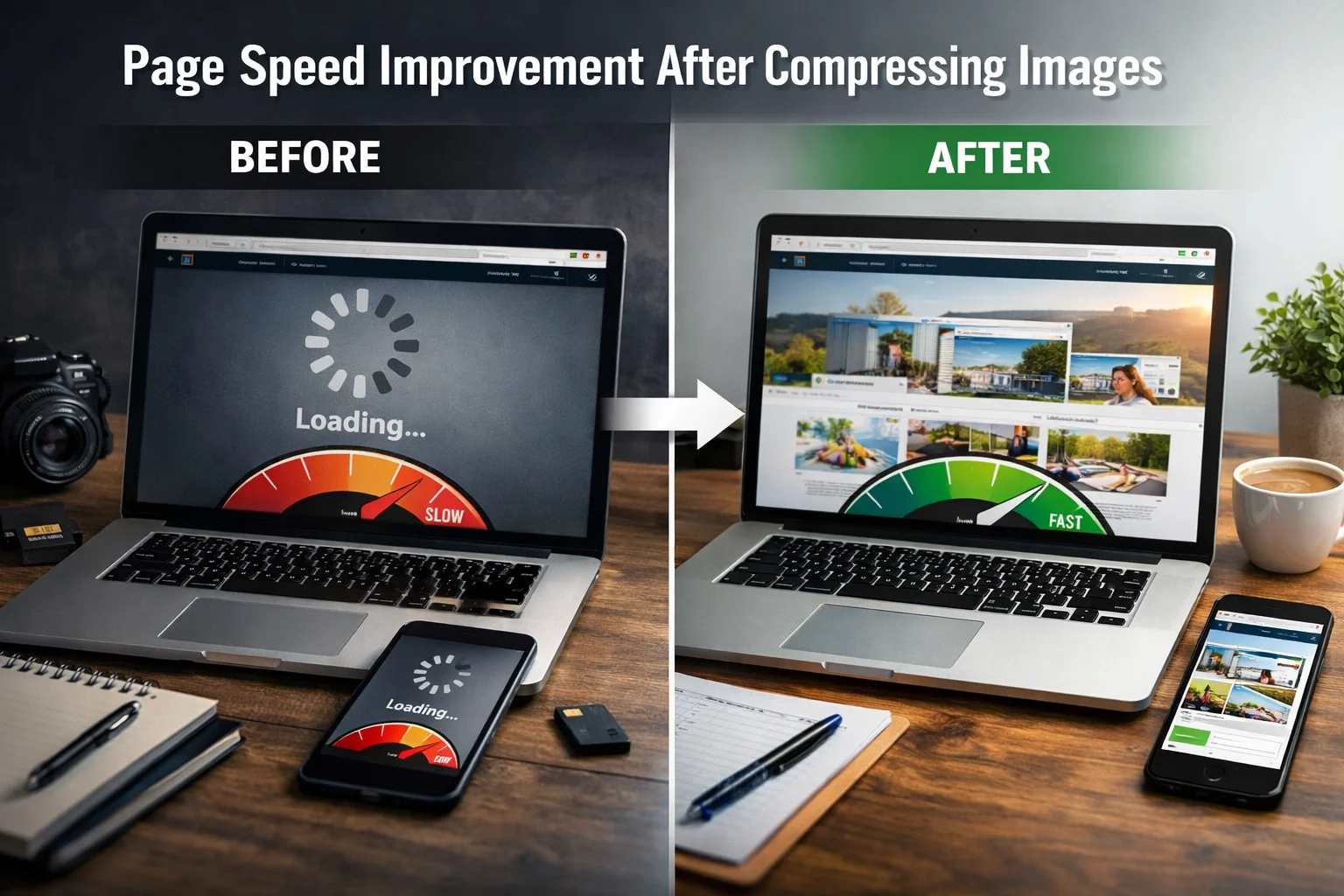
How images make pages slow even when they look small
This surprises many people. An image can “look small” on the page but still be huge in file size.
For example, you might show a 300px thumbnail, but the uploaded image is 3000px wide.
The browser still downloads the full image. That is wasted weight.
Fix: upload the correct size version
Always upload an image close to the real display size.
Then compress it to reduce KB and keep it sharp.
What about CDN, caching, and optimization plugins?
CDNs and caching are helpful, but they are not a replacement for image optimization.
A CDN can deliver heavy images faster, but the user still downloads heavy images.
Compression reduces the file itself, which is a real permanent speed improvement.
Quick checklist you can follow on every upload
- Resize to the correct width before upload
- Compress to a practical KB target
- Use WebP when possible
- Keep hero images under 400 KB when possible
- Use lazy loading for images below the fold
- Use simple file names (not random camera names)
FAQs: Why your website is slow even on fast hosting
1) Can images really slow down a website that has fast hosting?
Yes. Hosting affects server response, but images affect download size. Heavy images can slow down any site, even on premium hosting.
2) What is a “good” image file size for blogs?
In most cases, 80 KB to 200 KB is a safe target for blog images. Some detailed images can be larger, but keep them reasonable.
3) What is the fastest way to reduce image size?
Resize first, then compress. Resizing reduces pixels, compression reduces KB. Together they give the best results.
4) Should I use WebP for all website images?
WebP is great for most images because it gives smaller file sizes. Use PNG only when you need transparency or sharp logos.
5) Why does my site feel slow only on mobile?
Mobile connections are often slower and less stable. Heavy images increase load time more on mobile, so users feel the delay.
6) How do I compress images to a specific size like 10KB?
You can use a targeted tool page like Compress image to 10KB to meet strict upload requirements.
7) What about compressing images to 20KB?
For forms and portals that require a small file size, use Compress image to 20KB.
8) Is lazy loading good for SEO?
Yes, when used correctly. Lazy loading improves initial page load. Just make sure important images above the fold load normally.
9) Why do my images look blurry after compression?
That happens when compression is too aggressive or the image is resized too small. Compress gradually and check quality before publishing.
10) What should I optimize first to speed up my site quickly?
Start with the largest images on your homepage and your top traffic pages. Fixing the biggest files usually gives the fastest improvement.
Conclusion: if your site is slow, fix your images first
Fast hosting is helpful, but it cannot save a page that is overloaded with heavy images.
When you resize and compress images properly, pages load faster, users stay longer, and your site feels smoother on mobile.
If you want the quickest win for speed, start with your images. It is the simplest change with the biggest impact.
Need strict KB sizes for uploads? Use Compress image to 10KB or Compress image to 20KB and keep your website fast and clean.